Pag-IBIG Member’s Data Form (MDF)
Learn what the MDF contains, how to get or print your member record, where to find the blank form, and which form to use when your information needs correction.
Quick answer
The Pag-IBIG Member’s Data Form is the document that records a member’s identity, contact, family, membership category, employment, and other registration information. New members may fill out a blank MDF or receive a computer-generated membership record after registration. Existing members who need to change information normally use the Member’s Change of Information Form and update process, not a fresh MDF.
On this page
This article owns MDF retrieval, printing, downloading, and general use. Detailed member-information corrections will be covered separately in the Pag-IBIG Member’s Change of Information Form guide.
What is the Pag-IBIG Member’s Data Form?
The MDF is the main membership information record used during registration.
Personal identity
The form records the member’s complete name, birth details, citizenship, civil status, and other identifying information required by the current form.
Address and contact details
Present and permanent addresses, mobile number, email, and preferred contact information may form part of the membership record.
Employment and membership category
The MDF identifies whether the member is employed, self-employed, an OFW, not yet employed, or under another category shown on the current form. See the separate OFW membership requirements when registering from abroad.
Family and heirs information
Depending on the form version and the member’s situation, it may request parents, spouse, children, or heirs information used in the membership record.
Blank MDF form versus computer-generated MDF
Many searchers use the same name for two related documents, which causes confusion.
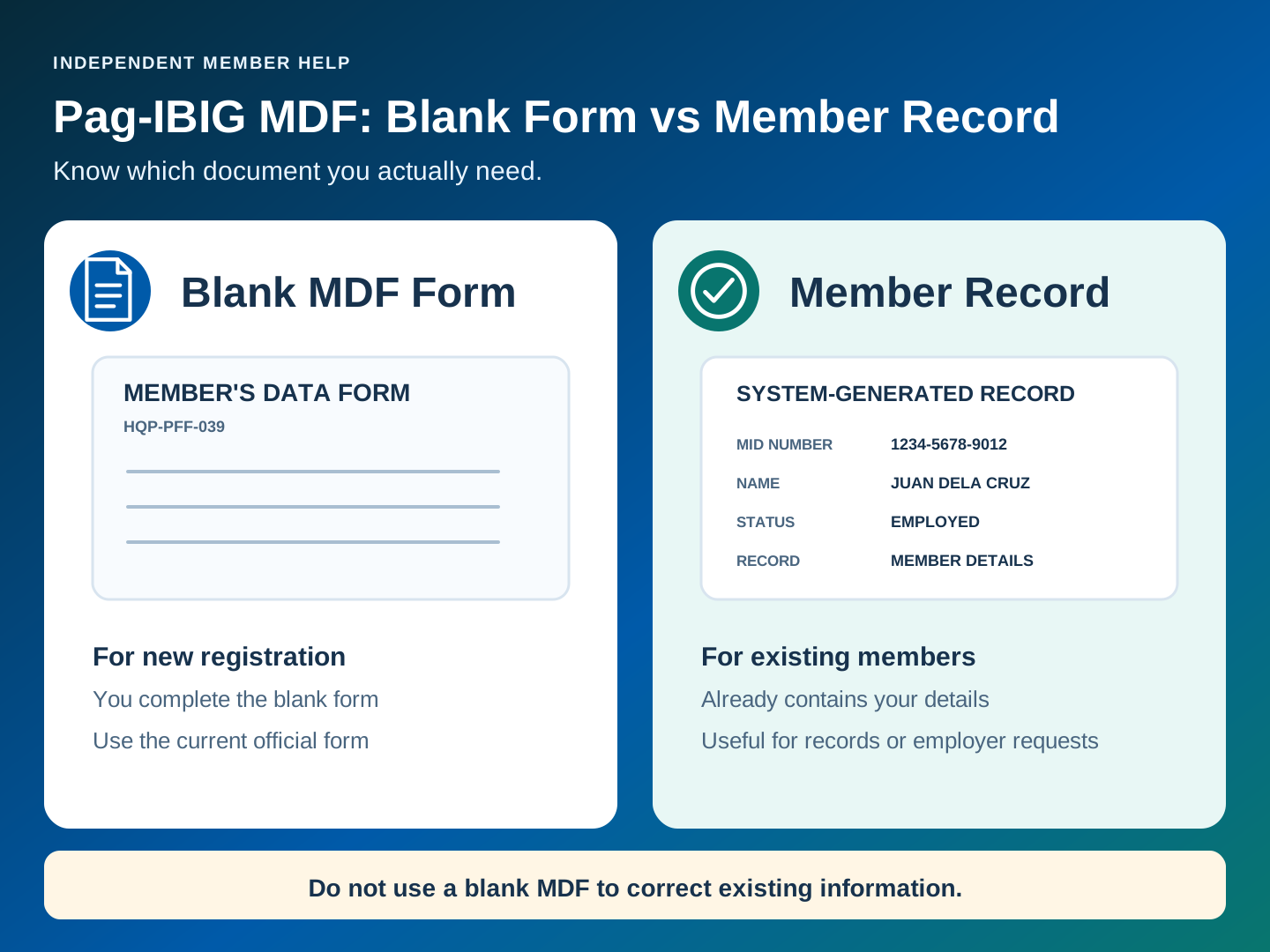
Blank Member’s Data Form
- A fillable or printable registration form
- Commonly identified as HQP-PFF-039
- Used when Pag-IBIG instructs a member to accomplish the form manually
- Must be completed according to the instructions printed on the current version
- May require valid identification or other supporting records when submitted
Computer-generated member record
- Created from information already encoded in the Pag-IBIG system
- May show the MID number or registration reference and the member details on file
- Often requested by employers as proof of membership information
- Should be reviewed for spelling and data accuracy
- Availability online can depend on the service and account status
How to get your Pag-IBIG Member’s Data Form
Choose the route that matches whether you need a blank form, your existing record, or employer proof.
Download a blank form
Open the official Pag-IBIG website and check the Downloadable Forms section for the current Member’s Data Form. Confirm the form title and code before filling it out.
Request your existing record
Use an available official member service, contact channel, or Pag-IBIG branch to request the membership record connected to your MID number.
Ask what your employer accepts
Some employers ask for an MDF, while others accept a MID verification, registration confirmation, or another Pag-IBIG membership document. Follow the exact onboarding checklist.
Can you get the Pag-IBIG MDF online?
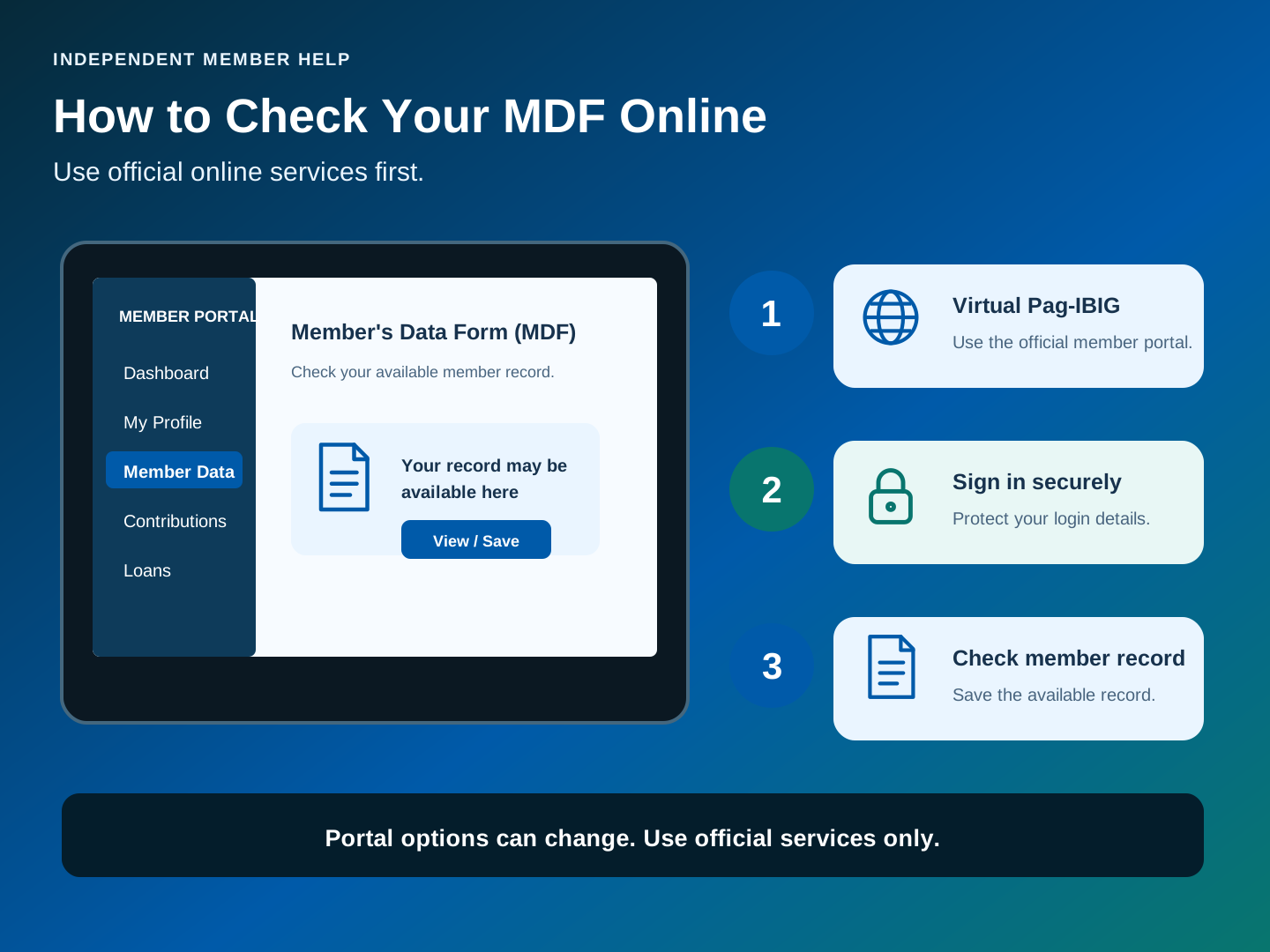
You can obtain the blank form online, but one-click access to a generated MDF is not guaranteed for every member.
Blank PDF download
The official Pag-IBIG website is the safest source for the latest blank MDF. Avoid old copies from file-sharing websites because form versions and instructions can change.
Virtual Pag-IBIG account
Virtual Pag-IBIG lets members view selected records and services, but the exact documents visible in an account can change. Log in and check the available membership sections rather than assuming an MDF download button will appear.
Registration confirmation
A new member who registered online may have a printable confirmation or membership record from the registration process. Save it immediately because it may be harder to retrieve from the same page later.
Official assistance
If the required document is not visible online, contact Pag-IBIG or visit a branch. State that you need a copy of the member data record and explain the purpose, such as employer onboarding.
How to print the Pag-IBIG Member’s Data Form
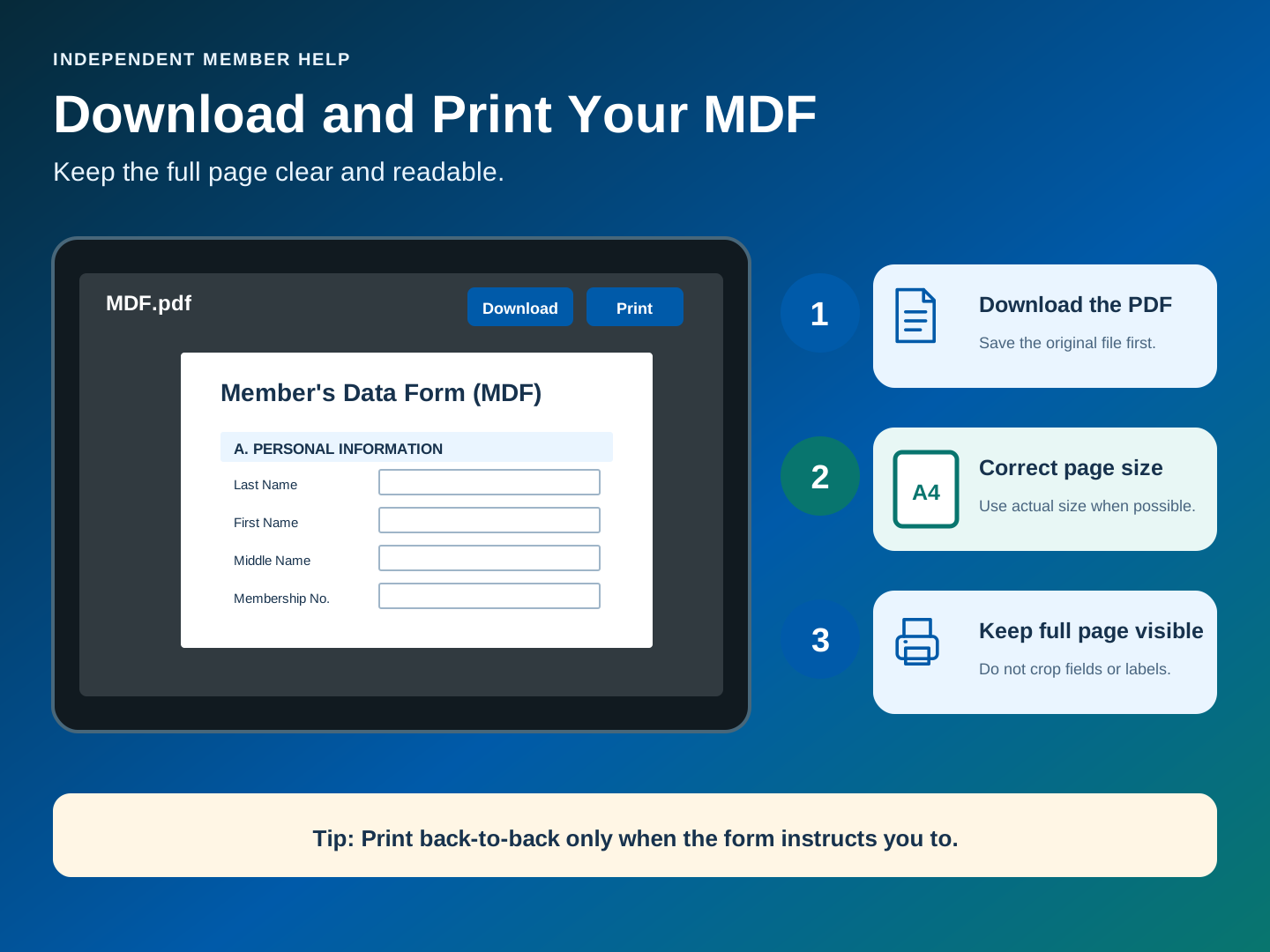
Print from the original PDF or generated record and keep every field readable.
Open the complete PDF
Download the file to your device before printing. Confirm that all pages load and that the form title, code, member name, and identification numbers are not cut off.
Follow the form’s printing instruction
Use the page size and layout shown on the current form. If the instructions require back-to-back printing on one sheet, select duplex printing or ask the print shop to place the two pages on opposite sides.
Use actual size when possible
Avoid enlarging, shrinking, or cropping the form unless the official file specifically allows it. Check that boxes, labels, signature lines, and barcodes or reference numbers remain clear.
Review the printed copy
Make sure the text is not faded and the full page is visible. Reprint the document when the MID number, name, or mandatory field is blurred.
Keep a secure copy
Store the digital file in a protected location and give copies only to a legitimate employer or office that needs the document. The MDF contains sensitive personal information.
How to fill out a blank Pag-IBIG MDF
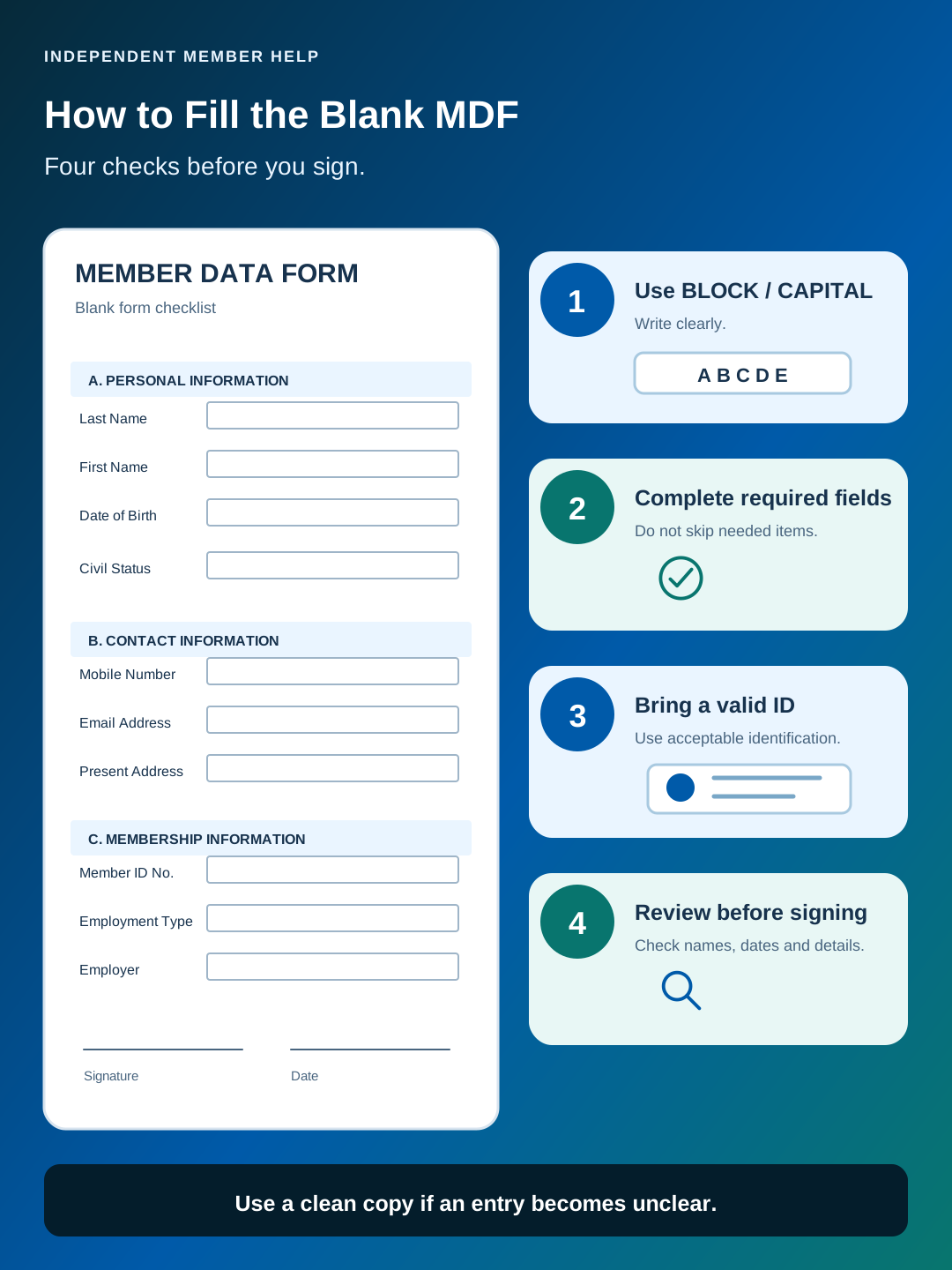
Follow the instructions printed on the exact form version you downloaded.
| Section | What to enter | Common mistake to avoid |
|---|---|---|
| Member name | Complete legal name, middle name, and suffix as shown on official records | Using a nickname, wrong spacing, or an unofficial middle initial |
| Birth information | Correct date and place of birth | Swapping the month and day or using a different birthplace format without checking the form |
| Parents and family | Names based on the birth record and other family details requested | Guessing a parent’s middle name or leaving a mandatory field blank |
| Address and contact | Complete current address, permanent address when different, mobile number, and email | Using an inactive number or email that you cannot access |
| Occupational status | The category that truthfully describes your current situation | Selecting employed when you are not yet employed, or choosing a category only because it appears easier |
| Employment information | Employer name, address, occupation, employment dates, or self-employment information as requested | Entering incomplete company details or mixing current and former employer information |
| Certification | Signature, date, and other certification information required on the form | Signing before reviewing all entries or leaving mandatory certification fields incomplete |
How to update information shown on your MDF
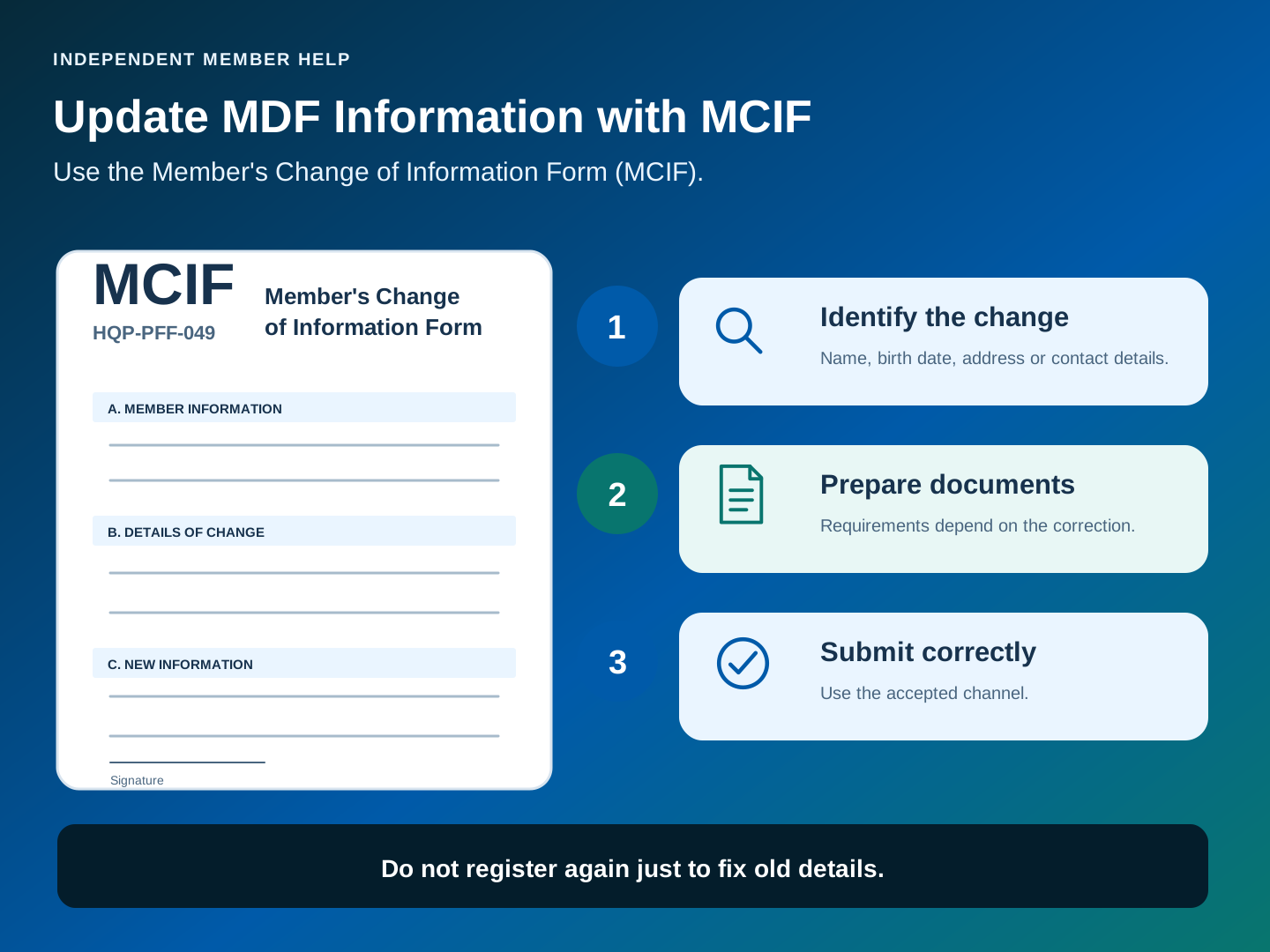
An existing member normally updates the official record through the Member’s Change of Information Form.
Use the correct form
The change form is commonly called the MCIF and identified as HQP-PFF-049. It is different from the blank MDF used for registration.
Identify the exact change
Changes may include name, birth date, civil status, address, contact details, membership category, employment information, or heirs, depending on the current MCIF.
Prepare supporting documents
The required proof depends on what you are correcting. A name or civil-status change may need a different document from an address or employment update.
Submit through the accepted channel
Follow the instructions on the current form and official Pag-IBIG guidance. Some changes may require branch submission and document authentication.
When an employer asks for your MDF
Confirm the purpose and send only the document that the employer actually requires.
New employment
The employer may use the MDF or another membership document to confirm your Pag-IBIG details before reporting contributions. Your name and MID must match your official member record.
Transfer to a new employer
You keep the same MID number when changing jobs. Do not complete a second membership registration simply because a new company asks for Pag-IBIG information.
Name mismatch
If your payroll name differs from the Pag-IBIG record, ask which correction must be completed before contributions are reported. Do not manually alter the generated MDF.
Acceptable alternative
Some employers may accept a MID verification, online registration confirmation, or another official record. Ask the HR team for the exact document name and format.
Common MDF problems and practical fixes
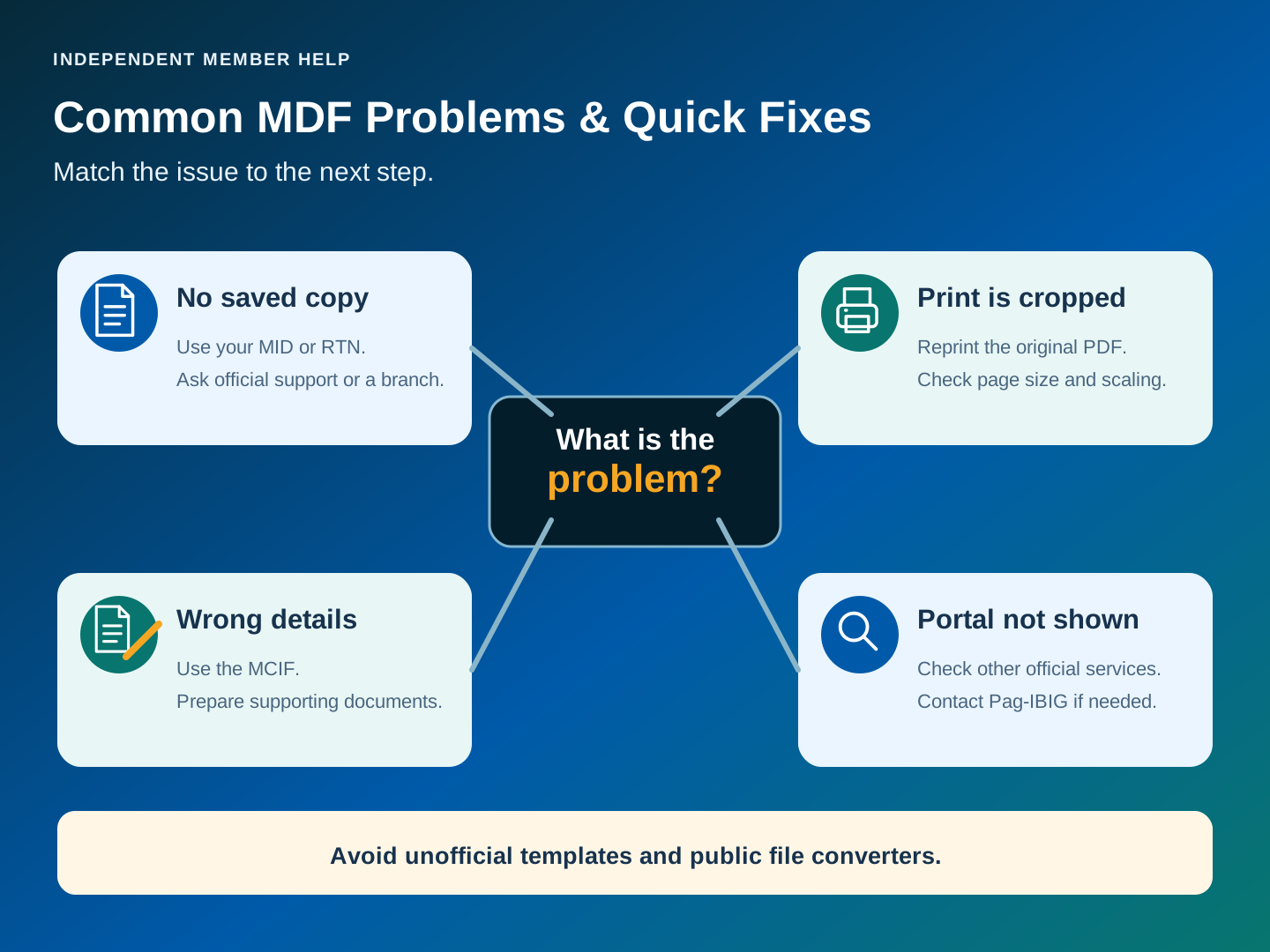
Use the issue below to choose the next action without creating another membership record.
| Problem | Likely reason | What to do |
|---|---|---|
| I did not print the MDF after online registration | The confirmation page was closed or the file was not saved | Use your RTN or MID to ask for the member record through an official service or branch. Keep the original registration details ready. |
| I cannot find an MDF download in Virtual Pag-IBIG | The document may not be offered as a direct download in that account or service view | Check other membership sections, then contact Pag-IBIG or request a copy at a branch. |
| The blank PDF will not open | The download may be incomplete or the device lacks an updated PDF reader | Download the file again from the official site and open it with a current browser or PDF application. |
| The printed MDF is cropped | Incorrect paper size, scaling, or print margins | Print from the original PDF, select the proper page size, and use actual size or the setting directed by the form. |
| The information is wrong | The data was entered incorrectly or has changed | Use the MCIF and the required supporting documents. Do not edit the generated file or submit a second registration. |
| I only have an RTN | The permanent MID may not yet be available or was not retrieved | Keep the RTN and follow the official MID verification process before requesting the final member record. |
| My employer says the MDF is old | The member record may not show the latest address, name, or employment details | Ask which field must be updated and complete the official change process before requesting a fresh copy. |
MDF, MID number, RTN, and CRN are not interchangeable
Each item has a different role in the membership process.
| Item | Meaning | Main use |
|---|---|---|
| MDF | Member’s Data Form or generated member data record | Records and presents membership information |
| MID number | Permanent 12-digit Pag-IBIG Membership ID number | Identifies the member for contributions and transactions |
| RTN | Registration Tracking Number | Tracks a newly submitted membership registration before or while the permanent record is being confirmed |
| CRN | Common Reference Number associated with a Philippine identification record | May be requested as identity information in a form or verification process, but it does not replace the Pag-IBIG MID number |
Frequently asked questions
Answers to common searches about getting, printing, downloading, and updating the Pag-IBIG MDF.
What does MDF mean in Pag-IBIG?
MDF means Member’s Data Form. It is the form or member record containing personal, contact, family, employment, and membership information.
How can I get my Pag-IBIG Member’s Data Form?
Download the current blank MDF from the official Pag-IBIG website when you need a form to accomplish. For an existing computer-generated member record, check available official online services or request it through Pag-IBIG support or a branch.
Can I get my MDF through Virtual Pag-IBIG?
Virtual Pag-IBIG provides many member services, but the documents available can vary. Log in and check the membership record sections. Contact Pag-IBIG when a direct MDF download is not shown.
How do I download the Pag-IBIG MDF PDF?
Use the official Pag-IBIG website and open its Downloadable Forms section. Choose the current Member’s Data Form and confirm that the form code and instructions are visible before saving it.
Is there an editable or fillable MDF?
The official form may be a fillable PDF depending on the current version. Do not rely on unofficial Excel, Word, or edited PDF templates because they may be outdated or altered.
How do I print my existing MDF?
Open the complete computer-generated PDF, check that all details are visible, and print without cropping. Follow any page-size or back-to-back instruction shown on the document.
I forgot to print the MDF after registering. What should I do?
Keep the RTN or MID number and request the member record through an available official service, support channel, or branch. Do not submit a second registration just to produce another form.
Can I update my MDF online?
A change to the official member record normally requires the Member’s Change of Information Form and supporting documents. The accepted submission channel depends on the information being changed and current Pag-IBIG instructions.
What form should I use to change Pag-IBIG information?
Existing members normally use the Member’s Change of Information Form, commonly called MCIF and identified as HQP-PFF-049, rather than completing a new MDF.
Can I edit the PDF before giving it to my employer?
Do not alter a computer-generated MDF. When the information is wrong, update the official Pag-IBIG record and request a corrected copy.
Is the MDF the same as my Pag-IBIG MID number?
No. The MDF is a document containing membership information. The MID is the permanent 12-digit membership number used to identify the member.
Is the MDF the same as the Pag-IBIG ID?
No. The MDF is not an identification card. It does not replace a valid government ID or the Pag-IBIG Loyalty Card Plus.
Does my employer need the original MDF?
Requirements differ by employer. Ask whether HR needs a printed copy, digital copy, MID verification, or another membership document.
Can I use a sample MDF from the internet?
A sample can help you understand the layout, but do not submit a sample or an old form version. Download the current official form for actual registration or use your authentic generated member record.
What if my MID number is missing from the MDF?
You may be viewing a blank form or a record produced before the permanent MID was confirmed. Use the official MID verification process and request an updated member record when the MID becomes available.
Is there a fee to get or update the MDF?
Pag-IBIG forms are not for sale. Do not pay an unofficial person merely for a blank form. Confirm any service requirement or charge directly with Pag-IBIG before making a payment.
Related Pag-IBIG membership guides
Use these guides to complete the steps that usually come before or after obtaining the MDF.
Official Pag-IBIG resources
Use official channels for forms, member records, identity verification, and corrections.
For a broader list of blank official PDFs, see our Pag-IBIG downloadable forms page.